

Set up GCP Logging observability
Prepare your Google Cloud project
- Create a Google Cloud project if you do not have one
- Enable the Cloud Logging API in your project
- Verify that the environment where your agent runs has credentials with permission to write logs (the
Logs Writerrole)
Configure GCP Logging in the standalone
Open the running standalone at 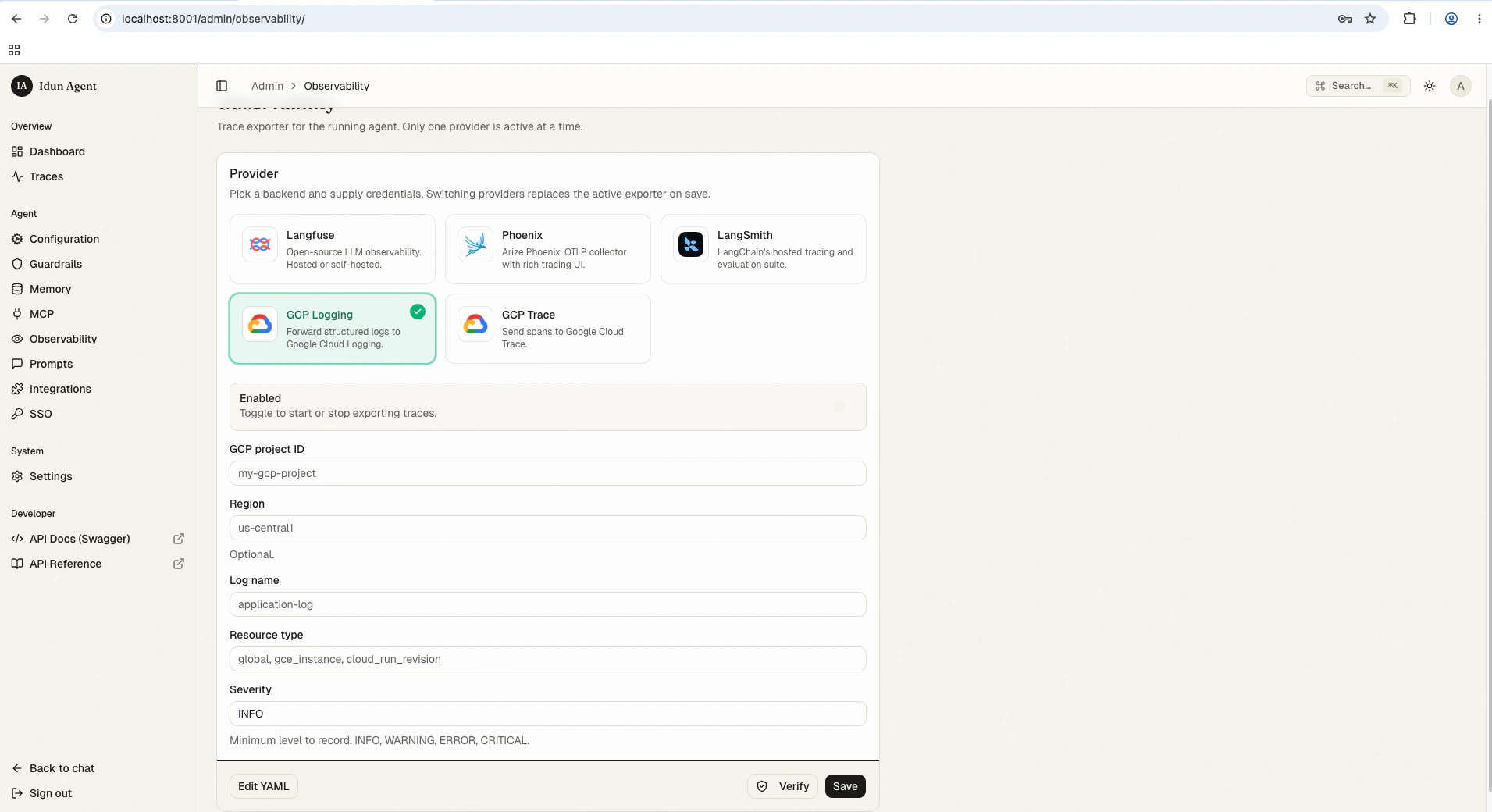
/admin/observability/ and click GCP Logging. Fill in:- GCP project ID: Your Google Cloud project ID
- Region: (Optional) Region/zone associated with the resource (e.g.,
us-central1) - Log name: Identifier for the log stream (e.g.,
application-log) - Resource type: Resource type label (e.g.,
global,gce_instance,cloud_run_revision) - Severity: Minimum level to record (
INFO,WARNING,ERROR,CRITICAL)
config.yaml for first-boot seeding or engine-only mode:
config.yaml
View log data
Once your agent is running with observability enabled:- Interact with your agent through the chat UI at
/or the API at/agent/run - Open the Google Cloud Console
- Navigate to Logging > Logs Explorer
Best practices
- Use structured logging: The agent platform sends structured logs, which are easier to query in GCP
- Set appropriate severity: Filter out debug noise in production by setting severity to
INFOorWARNING
Troubleshooting
Logs not showing up?
Logs not showing up?
- Check permissions: Verify the
Logs Writerrole is assigned to the agent’s service account - Check log name: Confirm you are filtering by the correct log name in Logs Explorer
Next steps
GCP Trace
Add distributed tracing alongside structured logs in Google Cloud.
Local trace store
See the same agent runs in the bundled admin UI without GCP setup.
Deploy to Cloud Run
Run the standalone next to your logs with managed Postgres.