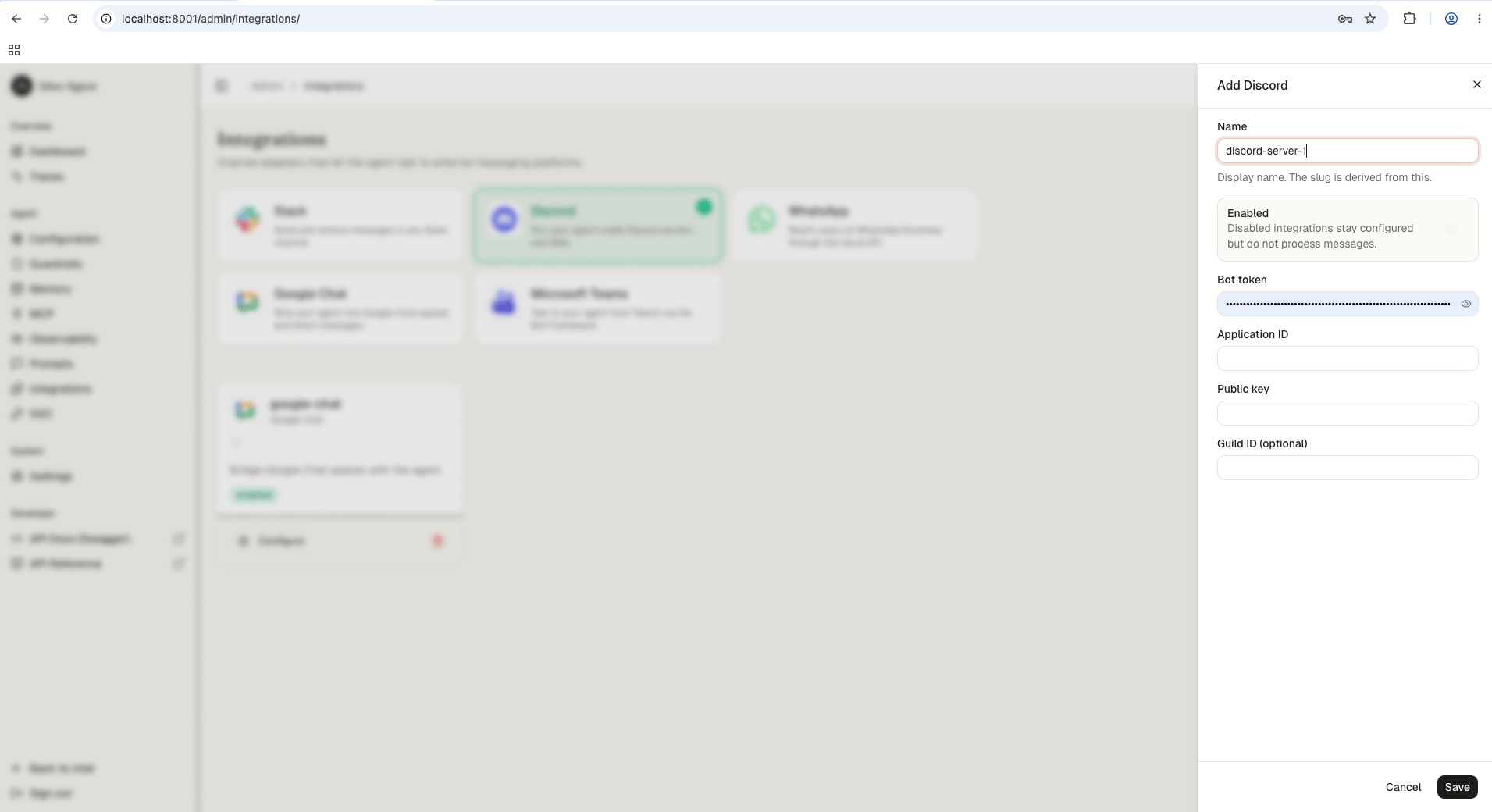
Navigate to /admin/integrations/ in the running standalone. The channel catalog shows WhatsApp, Discord, Google Chat, Slack, and Microsoft Teams as active channels.
2
Create the Discord integration
Click Discord and fill in the form:
Field
Value
bot_token
Bot token from your Discord application
application_id
Application ID from the Discord Developer Portal
public_key
Public key from the Discord Developer Portal
3
Save
Save the form. The reload pipeline registers the Discord webhook handler on the running engine.
On the General Information page, copy the Application ID and Public Key
2
Create a bot
Go to the Bot tab
Click Reset Token to generate a Bot Token
Copy the token immediately (it is only shown once)
3
Invite the bot to your server
Go to OAuth2 > URL Generator
Select scopes: bot, applications.commands
Select bot permissions: Send Messages
Copy the generated URL, open it in your browser, and select your server
To get your Guild ID: enable Developer Mode in Discord settings (User Settings > Advanced > Developer Mode), then right-click your server name and select Copy Server ID
4
Configure the integration
Add the Discord integration to your engine config:
Replace {APPLICATION_ID}, {GUILD_ID}, and {BOT_TOKEN} with your values.
"type": 3 means a STRING option. The engine extracts this as the query text sent to your agent.
To register a global command (available in all servers the bot is in), omit /guilds/{GUILD_ID} from the URL. Global commands can take up to 1 hour to appear.
7
Test it
Go to your Discord server
Type /ask query: Hello
The bot shows a “thinking…” indicator (deferred response), then replies with your agent’s answer
Discord POSTs the interaction to your engine’s webhook
Engine verifies the Ed25519 signature
Engine defers the response (Discord requires a reply within 3 seconds)
Engine invokes the agent asynchronously with the query text
Engine edits the deferred message with the agent’s reply
Session tracking: The Discord user ID is used as the session ID, so conversation context is maintained per user.Message limit: Discord messages are capped at 2,000 characters. Longer replies are truncated.