Connect your Idun agent to Microsoft Teams as a Bot Framework bot so users can @mention it in channels and direct messages.
Connect your Idun agent to Microsoft Teams so users can interact with it through @mentions and direct messages. The integration is single-tenant: each deployment registers its own Microsoft app in its own Azure AD and runs its own engine against it.
Navigate to /admin/integrations/ in the running standalone. The channel catalog shows WhatsApp, Discord, Google Chat, Slack, and Microsoft Teams as active channels.
2
Create the Teams integration
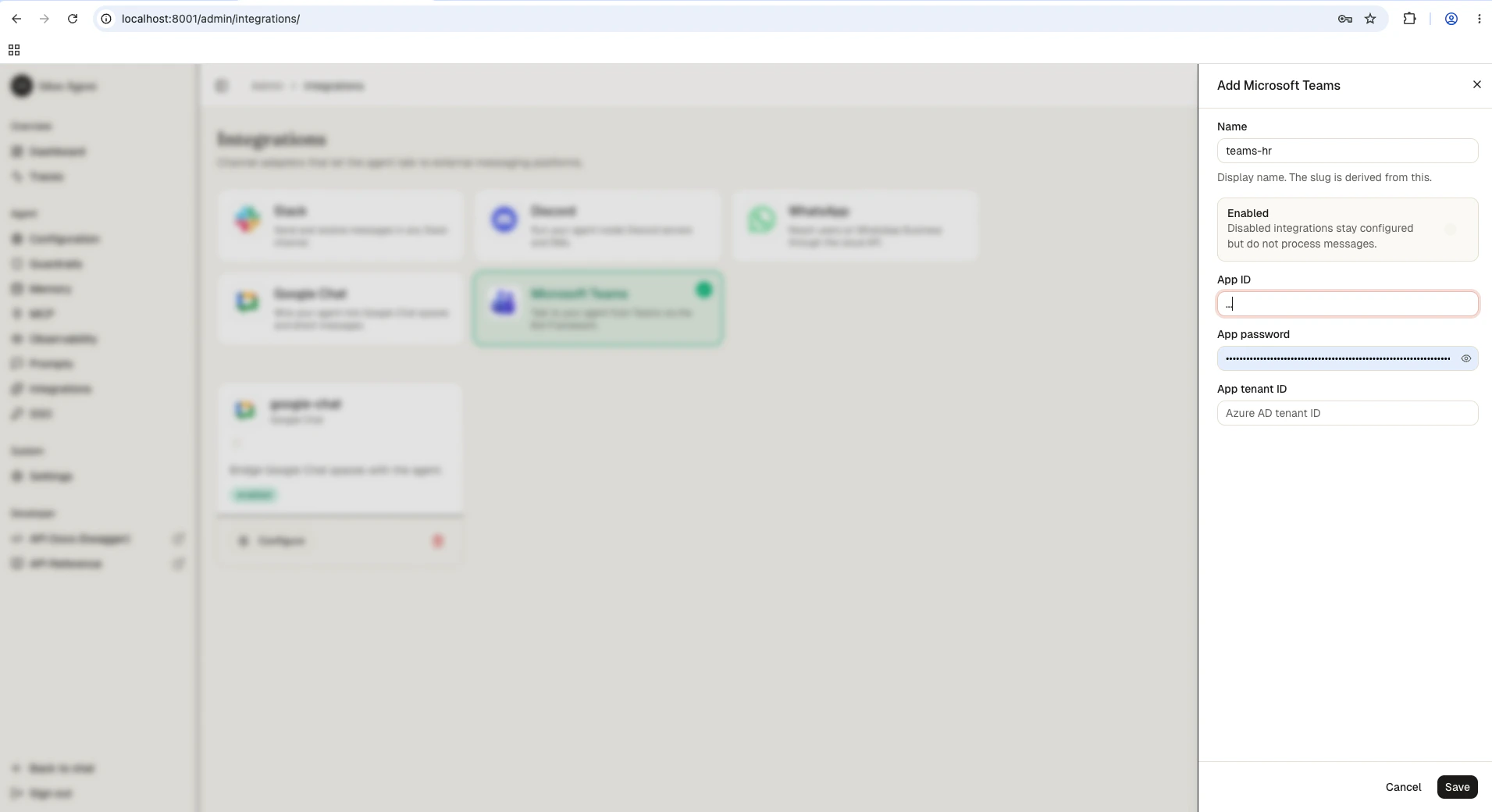
Click Microsoft Teams and fill in the credentials from your Azure AD app registration.
Field
Value
app_id
Microsoft App ID (the Application/Client ID from the Azure AD app registration)
app_password
Client secret from the Azure AD app registration
app_tenant_id
Azure AD tenant ID that owns the app registration
3
Save
Save the form. The reload pipeline registers the Teams webhook handler on the running engine; the agent now responds to messages forwarded by the Bot Framework.
1
Register an Azure AD application
Open the Azure portal and go to Microsoft Entra ID > App registrations
Click New registration, give it a name, and choose Single tenant
From the overview page, copy the Application (client) ID and the Directory (tenant) ID
Open Certificates & secrets > Client secrets, click New client secret, and copy the Value (not the Secret ID) immediately — it’s only shown once
2
Add the Microsoft Bot identity
Standard Teams bot messaging (@mention detection and replies) is handled by the Bot Framework channel and does not require Microsoft Graph application permissions. If your bot needs to receive every channel message (not only @mentions), declare Resource-Specific Consent (RSC) permissions in the Teams app manifest instead: ChannelMessage.Read.Group for channels or ChatMessage.Read.Chat for chats. Graph application permissions like ChannelMessage.Read.All are only needed for administrative or archival scenarios outside the bot’s conversation context.
Application (client) ID from the Azure AD app registration
app_password
Client secret value (not the secret ID)
app_tenant_id
Directory (tenant) ID that owns the app registration
Authentication uses Bot Framework’s ConfigurationBotFrameworkAuthentication with MicrosoftAppType=SingleTenant hardcoded. The integration does not currently support multi-tenant apps.
4
Create the bot resource
In the Azure portal, search for Azure Bot and click Create
Give the bot a handle, pick the resource group, and select Use existing app registration with the app ID from step 1
Once the bot is created, open Channels and add Microsoft Teams
Open Configuration and set the Messaging endpoint to:
https://<your-domain>/integrations/teams/messages
5
Install the bot in Teams
From the bot’s Channels > Microsoft Teams page, follow the Open in Teams link
Install the app in a team or use it as a personal chat